
How to Clean a Smartboard Screen: Expert Maintenance Guide
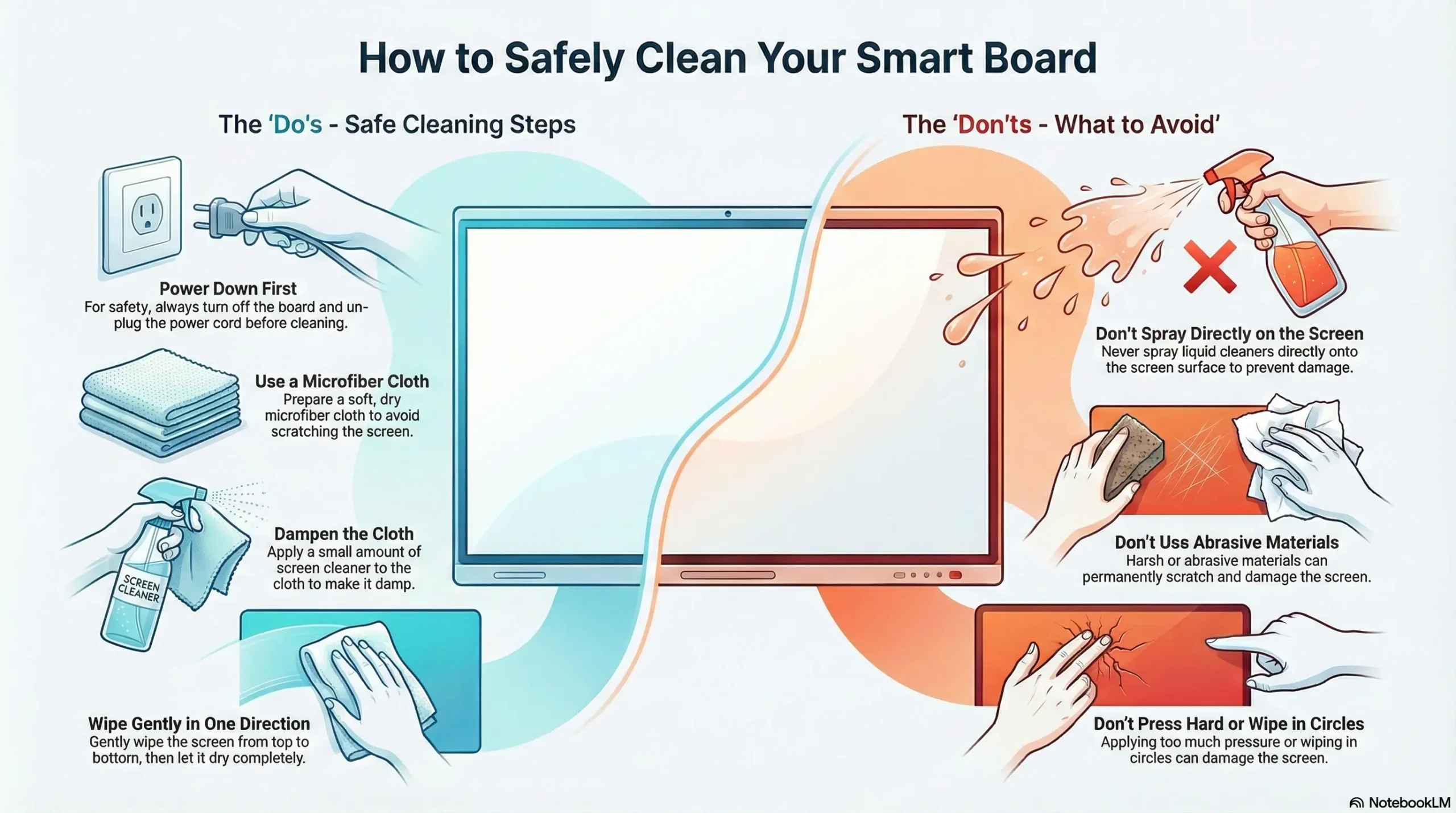
Executive Summary: Knowing how to clean a Smartboard screen properly is essential for maintaining touch accuracy and display clarity. Neglecting screen hygiene can lead to ghost touches, sensor calibration drift, and permanent damage to anti-glare coatings. This guide covers industry-standard protocols for safe maintenance.
AI Snapshot: Quick Definition
To clean a Smartboard, first power down the unit to see dirt clearly. Use a dry, lint-free microfiber cloth to remove dust. For stains, lightly mist the cloth (never the screen) with distilled water or an alcohol-free screen cleaner. Wipe gently in a circular motion and ensure IR sensors in the bezel are dust-free.
Evolution of Interactive Displays: Why Cleaning Methods Changed
In the early 2000s, interactive whiteboards relied on resistive technology—essentially two flexible sheets separated by an air gap. You could clean these rugged surfaces with almost anything. However, modern interactive flat panels (IFPs) use sophisticated Infrared (IR) or Projected Capacitive (PCAP) technology.
Today, knowing how to clean a Smartboard screen requires understanding these delicate components. The surface often features an oleophobic or anti-glare coating that harsh chemicals can strip away. Furthermore, IR displays rely on invisible light grids projected from the bezel; if dust accumulates in the corners, the "touch" is blocked, leading to technical failures. For comprehensive hardware support, explore our interactive display solutions.
Core Technology Risks: What Avoids Damage?
Before grabbing the spray bottle, it is vital to understand the chemistry. Most household glass cleaners contain ammonia or high concentrations of isopropyl alcohol. According to technical documentation from manufacturers like SMART Technologies, these solvents can degrade the acrylic or glass finish over time, resulting in a cloudy "haze" that cannot be fixed.
Additionally, liquid seepage is a major risk. Unlike a standard whiteboard, an IFP is a computer. Liquid dripping into the bottom bezel can short-circuit the IR emitters or the power supply unit. This is why professionals insist on spraying the cloth, not the device.
Step-by-Step: How to Clean a Smartboard Screen
Follow this evidence-based protocol to ensure longevity and hygiene:
1. Power Down the Unit
Turn off the display and let it cool. A black screen makes smudges and fingerprints visible, while a cool surface prevents cleaning fluids from evaporating too quickly and leaving streaks.
2. The Dry Wipe (Daily)
Use a clean microfiber cloth to wipe the screen in large circular motions. This removes 90% of dust and light oil. Avoid paper towels, which are wood-pulp based and abrasive at a microscopic level.
3. The Wet Clean (Weekly/As Needed)
If dry wiping fails to remove ink or sticky residue:
- Prepare a solution of 50% distilled water and 50% isopropyl alcohol (only if approved by your specific model's manual) OR use a dedicated screen cleaner.
- Spray the solution onto the cloth. It should be damp, not dripping.
- Gently wipe the affected area.
4. Cleaning the Sensors
This is the most overlooked step. Dust buildup in the frame causes "ghost touches." Use a dry cloth or compressed air (held upright) to gently clear dust from the inner corners of the bezel.
Safe vs. Unsafe Cleaners
| Cleaning Agent | Safety Status | Technical Impact |
|---|---|---|
| Distilled Water | Safe | Neutral pH, no residue. |
| Microfiber Cloth | Safe | Traps dust without scratching glass. |
| Ammonia (Windex) | Unsafe | Strips anti-glare coating; causes yellowing. |
| Paper Towels | Unsafe | Micro-abrasive; creates scratches over time. |
| Bleach | Unsafe | Corrosive to plastics and bezel sensors. |
Future Tech: Self-Cleaning Displays?
The ICT industry is moving toward antimicrobial coatings (using silver ions) baked directly into the glass, reducing the need for chemical disinfection. AI-driven diagnostic tools are also emerging, capable of alerting IT teams when sensor calibration is blocked by debris, streamlining managed IT maintenance workflows.
Frequently Asked Questions
Can I use hand sanitizer on the screen?
Generally, no. Hand sanitizers often contain gels and moisturizers that leave a greasy residue, blurring the image. High-alcohol content can also damage older plastic screens.
How do I fix a permanent marker mistake?
Do not panic. Write over the permanent ink with a dry-erase marker. The solvent in the dry-erase ink will dissolve the permanent pigment. Wipe it away immediately with a microfiber cloth.
Why does the screen register touches I didn't make?
This is likely "calibration drift" caused by dust blocking the Infrared (IR) sensors in the bezel. Clean the inner edges of the frame to restore accuracy.
Is vinegar safe for Smartboards?
Vinegar is acidic. While better than ammonia, it can still degrade the oleophobic coating over time. Distilled water is the safest solvent.
Does ANZ Worldwide offer maintenance contracts?
Yes, we provide comprehensive support for education and corporate displays. Visit our solutions page to learn more about hardware lifecycle management.
References:
1. SMART Technologies. (2024). Cleaning and disinfecting SMART Board interactive displays. Retrieved from smarttech.com.
2. IEEE. (2023). Durability of Touch Screen Interfaces in Educational Settings. IEEE Xplore Digital Library.