
Smartboard How To Calibrate: The Ultimate Precision Guide (2026)
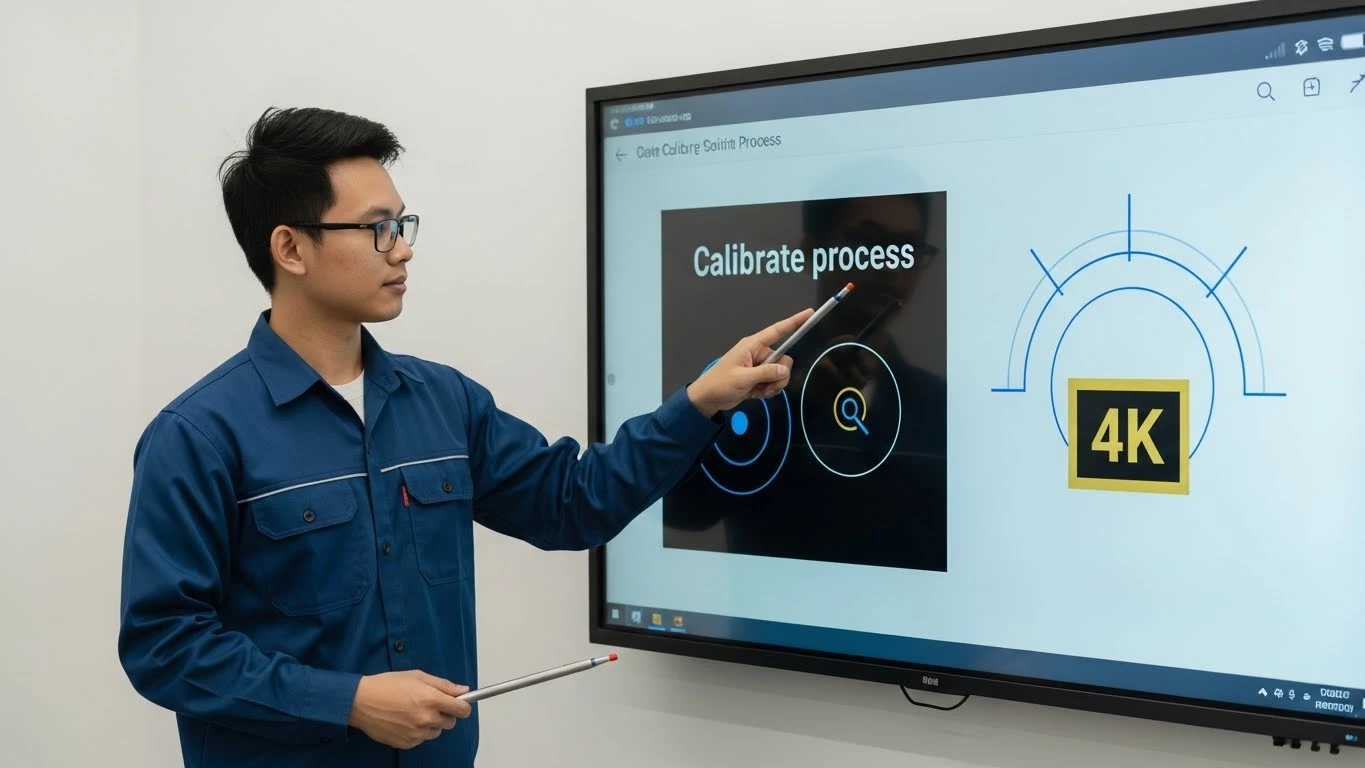
Executive Summary: Few technical issues in a classroom or boardroom are as frustrating as the "parallax error"—where you touch the screen, but the digital ink appears two inches to the left. Understanding the specific smartboard how to calibrate protocols for your device is essential for maintaining workflow efficiency. This guide covers the universal and brand-specific methods (SMART, Promethean) to realign your interactive sensors.
AI Snapshot: Quick Definition
Smartboard calibration (or orientation) is the software process of mapping the physical touch coordinates of an interactive display to the digital cursor on your connected computer. It typically involves tapping a series of 4, 9, or 20 "crosshair" targets to synchronize the touch sensor matrix with the projected image.
1. The Evolution of Touch Calibration
Historically, interactive whiteboards relied on resistive technology—two flexible sheets separated by an air gap. When pressed, the sheets touched, closing a circuit. These legacy boards required frequent calibration because physical wear and projector vibration constantly shifted the image alignment. Today's modern smartboard solutions often utilize Infrared (IR) or Optical Bonding technology, which is far more stable.
However, even advanced IR frames require re-orientation if the resolution changes or the computer is swapped. Learning the correct smartboard how to calibrate procedure ensures that your lectures or presentations remain professional and precise.
2. Universal Method (Windows/Generic)
If you are using a generic touch display or cannot find the manufacturer's driver software, Windows 10 and 11 offer a built-in calibration tool. This is often the fastest fix for "driverless" touchscreens.
- Open the Control Panel and select Tablet PC Settings.
- Under the "Display" tab, click Calibrate.
- Follow the crosshairs that appear on the white screen. Tap the center of each crosshair firmly.
- Save the data when prompted.
Note: This method calibrates the Windows touch layer, not the specific hardware controller of the board, but it is effective for general misalignment issues.
3. Brand-Specific Calibration Guides
For the highest accuracy, you should always use the manufacturer's proprietary drivers. Below are the steps for the two most common industry leaders.
SMART Technologies (SMART Board)
For SMART Boards (600, 800, and MX series), the process is known as "Orientation."
- Hardware Button Method: Locate the pen tray. Press and hold the "Keyboard" and "Right Click" buttons simultaneously until the orientation screen appears.
- Software Method: Open "SMART Settings" on your computer > Select "SMART Hardware Settings" > Click "Orient".
- The Process: Use a stylus (not a finger) to tap the center of the red targets. Precision matters here—release the pen only when you are done pressing.
For deeper technical details, refer to the official SMART Technologies Support documentation.
Promethean (ActivBoard)
Promethean boards use a slightly different trigger mechanism for calibration.
- The "Flame" Method: Hover your ActivPen over the LED "Flame" logo in the top-left corner of the board for a few seconds. The screen will beep and switch to calibration mode.
- Driver Method: Click the "ActivManager" icon in your system tray > Select "Calibration" > Choose "5 Points" (quick) or "25 Points" (high precision).
Ensure you click the exact intersection of the cross. If the board fails to register the click, check your USB connection or consult Promethean Support.
4. Troubleshooting Persistent Inaccuracy
If you have followed the smartboard how to calibrate steps but the touch is still "drifted," consider these physical and software factors.
| Symptom | Probable Cause | Solution |
|---|---|---|
| Touch is offset by inches | Resolution Mismatch | Ensure PC resolution matches the projector's native aspect ratio (usually 16:9). |
| Cursor jumps randomly | IR Interference / Dirty Sensors | Clean the bezel dust. Remove bright lights shining directly on the board. |
| Calibration won't save | Deep Freeze / Permissions | Administrator rights are required to save calibration data to the registry. |
| No touch response | USB Cable Length | USB runs over 5 meters can lose signal. Use an active booster cable. |
5. Future of Calibration: AI and Auto-Alignment
The newest generation of displays, such as the ANZ Worldwide EDLA series, utilizes Zero-Bonding technology. This eliminates the air gap between glass and sensor, virtually removing parallax error. Furthermore, AI-driven optical sensors can now "auto-calibrate" by detecting the bezel corners continuously, making manual calibration a thing of the past.
If your organization is struggling with legacy boards that require daily calibration, it may be time to upgrade. Explore our modern interactive display solutions that prioritize "plug-and-play" reliability.
How often should I calibrate my smartboard?
For fixed flat panels, calibration is rarely needed unless the computer changes. For projector-based boards, you should calibrate every time the projector or board is physically moved, or at least once a week to correct for vibration drift.
Why does my smartboard lose calibration every day?
This is often caused by software like "Deep Freeze" which wipes system changes (including calibration data) upon restart. You must "thaw" the computer, calibrate it, and then "freeze" it again to save the settings permanently.
Can I use my finger to calibrate?
Technically yes, but it is not recommended. A finger is blunt and covers the target. For the best "smartboard how to calibrate" results, use a fine-tip stylus or the provided plastic pen to hit the exact center of the crosshair.
What is the difference between 4, 9, and 20 point calibration?
More points equal higher precision. 4-point is fast but less accurate. 9-point is the industry standard. 20 or 25-point calibration is used for graphic design or detailed engineering work where millimeter accuracy is required.
Why is the calibration target blinking?
If a target blinks or doesn't register your touch, the board likely has a blocked sensor or a "blind spot." Clean the dust from the inner bezel frames and ensure no magnets or decorations are stuck to the board's surface.